
Your phone is plugged in, but the battery icon will not budge. Maybe it charges only if you hold the cable at a certain angle, or the “Accessory not supported” message keeps popping up. Before you buy a new phone, it helps to know that most charging problems come down to one of three things: the cable, the power adapter, or the charging port inside the phone. This guide walks through how to tell them apart at home, what you can safely fix yourself, and when it is time for charging port repair in Tampa.
Start with the easy suspects: cable and adapter
Cables take a beating. They get bent in car cup holders, wrapped tightly around adapters and stepped on next to the bed. The wires inside can break even when the outside looks fine. Power adapters fail too, especially cheap ones from gas stations. Testing them takes a couple of minutes:
- Try a different cable that you know works with another phone.
- Try a different adapter or outlet. Plug into a wall outlet rather than a car charger, laptop or power strip while you test.
- Use your cable on another phone. If that phone will not charge either, the cable is the problem.
- Look at the cable ends. Fraying near the plug, exposed wire, a bent or blackened tip, or a plug that feels loose in every phone are all signs it is time to replace it.
If a known-good cable and adapter charge your phone normally, you have your answer and you have saved yourself a trip. If the phone still will not charge with gear that works elsewhere, the issue is most likely inside the phone.
Signs the charging port is the problem
The charging port is the small opening at the bottom of your phone, a Lightning port on older iPhones and USB-C on the iPhone 15 and later and on most Android phones. Because it is open to the world, it collects lint, sand and moisture, and its tiny pins can wear or bend over time. Common signs of a port problem include:
- The phone charges only when you hold or wiggle the cable
- The cable feels loose or falls out with a light touch
- Charging starts and stops over and over
- The phone charges very slowly with an adapter that used to be fast
- Your computer no longer recognizes the phone when you plug it in
- A “liquid detected” or moisture warning appears even though the port looks dry
Pocket lint: the most common culprit
A surprising number of “broken” charging ports are simply packed with lint. Every time you put your phone in a pocket, a little fabric dust gets pushed into the port, and every time you plug in, the cable presses it down a bit tighter. Eventually the plug cannot seat fully, so it stops making good contact. At the beach, sand does the same thing.
Shine a flashlight into the port. If you see a gray, felt-like layer at the bottom, that is probably it. You can gently loosen it with a wooden toothpick or a soft plastic tool, with the phone turned off. Please do not use metal objects such as paper clips, pins or needles, which can scratch or short the pins, and do not blast compressed air straight into the port, since it can push debris deeper. If you are not comfortable doing it, a repair shop can clean the port safely in a few minutes.
Water, humidity and corrosion
Tampa humidity, pool days and summer storms are hard on charging ports. When moisture sits on the metal pins, it can cause corrosion, a green or white crust that blocks the connection. If your phone shows a liquid warning, unplug it, let it dry completely and do not try to force a charge. Corrosion usually gets worse with time, so it is worth having it checked. If the phone got properly soaked, our guide on what to do if your phone gets wet explains the first steps, and our water damage repair service can take it from there.
When it is actually the battery or software
Not every charging problem is the port or the cable. A few other causes are worth ruling out:
- Software glitch. Restart the phone and make sure it is up to date. A frozen charging process sometimes clears after a restart.
- Optimized charging. iPhones can pause charging at 80% to protect the battery. That is normal and not a fault.
- Heat. If the phone is hot, for example after sitting in a car, it may slow or pause charging until it cools down.
- Worn battery. If the phone charges but drains quickly or shuts off with battery left, the battery may be the real issue. On an iPhone, check Settings, Battery, Battery Health.
- Swollen battery. If the screen is lifting away from the frame, stop charging the phone and bring it in. That is a safety issue.
What to expect from a charging port repair
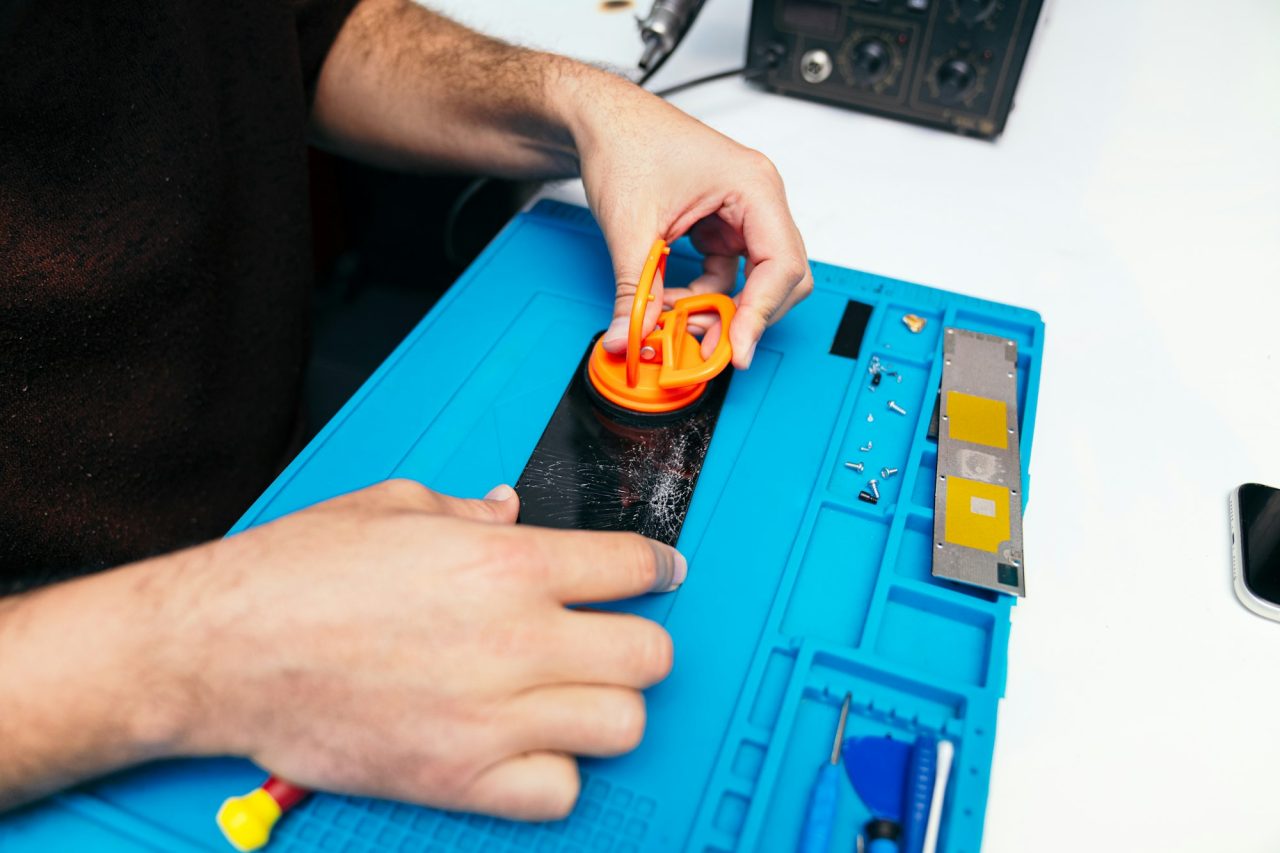
When you bring a phone that will not charge to Cellphone MD, we start by testing it with our own cables and power supplies to confirm where the problem is. Sometimes a professional cleaning is all it needs. If the port is damaged, bent or corroded, the port or its charging assembly can be replaced. You will know what is wrong and what it costs before any work begins, most repairs are finished the same day, and every repair comes with a 90-day warranty.
We repair charging problems on iPhones, Samsung phones, iPads and other smartphones. You can find more answers in our phone repair FAQ.
Habits that keep your charging port healthy
- Use a case with a port cover, or keep the phone in a clean pocket away from lint and sand
- Pull the cable out by the plug, not by the cord
- Do not use the phone heavily while it is plugged in at an awkward angle
- Replace frayed cables before they damage the port
- Choose quality, certified cables and adapters rather than the cheapest option
Phone still not charging? Visit us in Tampa
If you have tried another cable and adapter and your phone still will not charge, bring it to our shop on W Busch Blvd for a quick check. See details on our charging port repair page, or contact us online.
Cellphone MD
2086 W Busch Blvd, Tampa, FL 33612 (between N Rome Ave and N Armenia Ave)
Call (813) 333-6655